Quick Start
Get up and running with hidettp in under five minutes. This guide walks you through signing in, setting up your workspace, and creating your first bot.
Sign In
hidettp uses passwordless email authentication:
- Go to the hidettp sign-in page.
- Enter your email address.
- Check your inbox for a one-time verification code (sent via email).
- Enter the code to complete sign-in.
No password to remember. Each code is single-use and expires after a short window.
Organization Setup
After your first sign-in, hidettp creates a personal workspace for you automatically. This is your default organization where all your bots, executions, and settings live.
You can also:
- Create additional organizations for different teams, projects, or clients.
- Invite team members and assign roles (owner, admin, member, or viewer) to control who can create, edit, and run bots.
All data in hidettp is scoped to an organization. Switch between organizations using the workspace selector.
Dashboard Overview
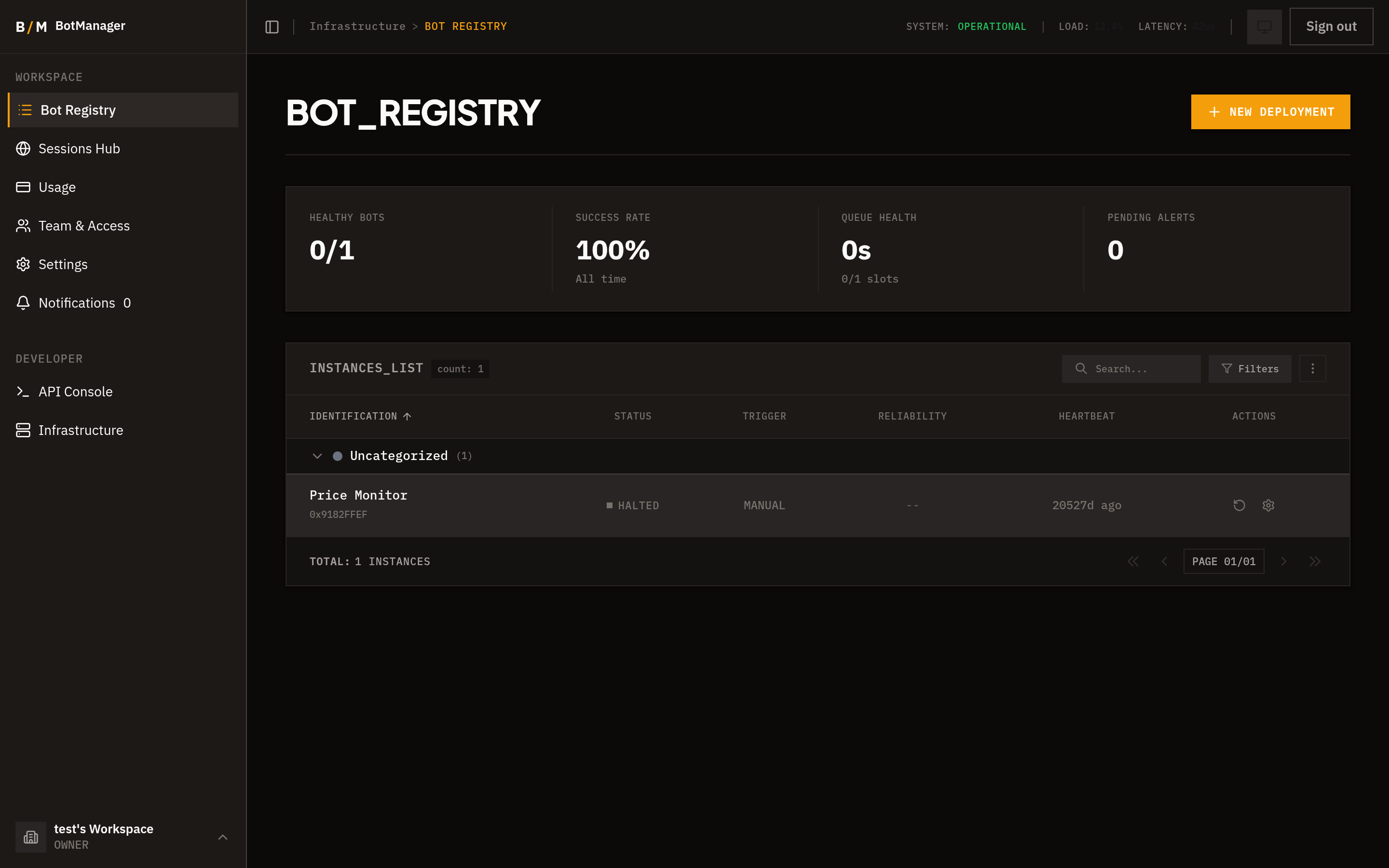
Your home page is the Bot Registry -- a centralized view of every bot in your organization.
The dashboard shows:
- Health metrics -- at-a-glance stats for healthy bots, success rates, queue health, and active alerts.
- Bot table -- a searchable, filterable list of all bots with their status, last run time, schedule, and tags.
- Filtering and search -- narrow down bots by name, tag, category, type, or status.
From the dashboard, click any bot to open its detail page, or click New Bot to create one.
Create Your First Bot
- Click New Bot in the top-right corner of the dashboard.
- Enter a name for your bot (e.g., "Product Price Checker").
- Paste the target URL -- the website your bot will interact with.
- Choose a type:
- Extraction -- for scraping data from pages. Can be scheduled for recurring runs.
- Action -- for performing tasks (form fills, clicks, etc.). Triggered via API with parameters.
- Optionally add tags to organize your bots (e.g., "pricing", "competitor", "daily").
- Click Create.
Your bot is now created and ready to configure. You will land on the bot detail page where you can record interactions, write a script, or adjust settings.
Next Steps
- Visual Recorder -- Record browser interactions and generate scripts without writing code.
- Script Editor -- Write and edit Python automation scripts with AI assistance.
- Bot Settings -- Configure proxy, stealth, webhooks, and scheduling.