Executions Overview
An execution is a single run of a bot's script inside a dedicated browser instance. Each time a bot runs — whether triggered manually, on a schedule, or via the API — hidettp creates an execution that tracks every step from start to finish.
Execution Lifecycle
Every execution moves through a defined set of states:
- Pending — The execution is queued and waiting for an available runner.
- Processing — A runner has picked up the execution and the bot script is actively running in a browser.
- Terminal state — The execution ends in one of the following:
- Success — All steps completed without error.
- Failed — The script encountered an unrecoverable error. A screenshot and DOM snapshot are captured automatically.
- Cancelled — A user or the system cancelled the execution before completion.
- Timeout — The execution exceeded its allowed run time.
Triggering an Execution
There are three ways to start an execution:
- Manual — Click the Run Bot button on the bot detail page. The execution begins immediately.
- Scheduled — Configure a recurring schedule (see Scheduling) and executions are created automatically at each interval.
- API — Send a
POSTrequest to the executions endpoint. See the API Reference for details.
Execution List
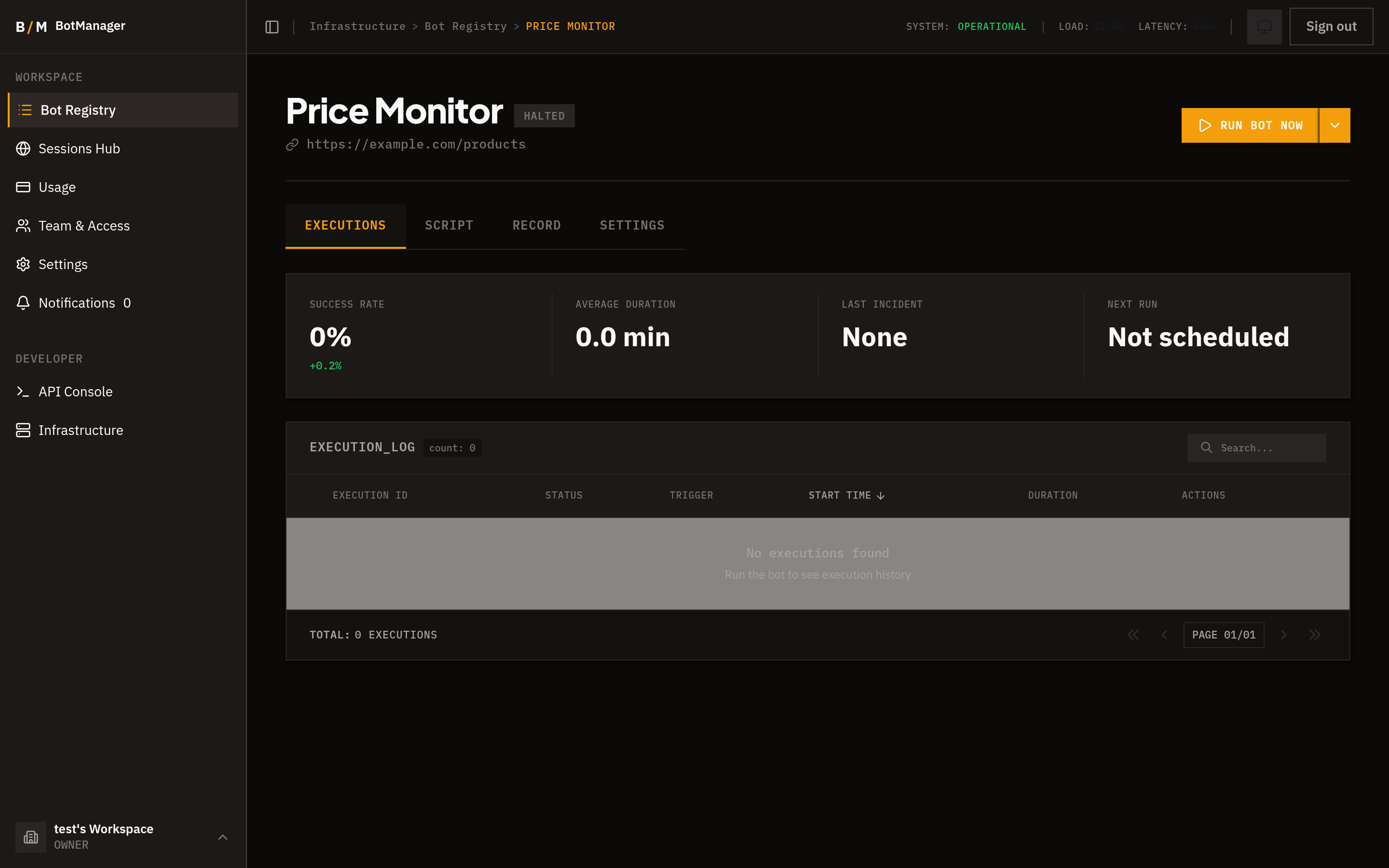
The Executions tab on each bot displays all past and current executions in a sortable, searchable table. Each row shows:
- Status — Current state (pending, processing, success, failed, cancelled, timeout).
- Duration — How long the execution ran.
- Timestamp — When the execution was created.
- Trigger — Whether the run was manual, scheduled, or API-initiated.
Click any row to view the full execution detail, including step-by-step progress, logs, and outputs.
Execution Stats
At the top of the Executions tab, summary statistics give you a quick health check on your bot:
- Success rate — Percentage of executions that completed successfully.
- Average duration — Mean run time across recent executions.
- Last incident — Timestamp of the most recent failure or timeout.
- Next scheduled run — Countdown to the next automatic execution (if scheduling is enabled).
Step-by-Step Progress
During execution, each step defined in the bot script reports its progress individually. For every step you can see:
- Step name — What action the step performs.
- Status — Whether the step is pending, running, completed, or failed.
- Timing — How long the step took to execute.
This granular progress tracking lets you identify exactly where a bot succeeds or fails.
Failure Context
When an execution fails, hidettp automatically captures debugging context:
- Screenshot — A screenshot of the browser at the moment of failure, showing exactly what the bot was seeing.
- DOM snapshot — The full HTML state of the page, useful for diagnosing missing elements or unexpected page structures.
These artifacts are accessible from the execution detail view and are invaluable for diagnosing and fixing bot issues.
Video Recording
Every execution is video-recorded from start to finish. You can replay the recording to see exactly what happened in the browser during the run — useful for debugging intermittent failures, verifying that a bot navigates correctly, or sharing results with your team.
Video replays are accessible from the execution detail view.
Data Retention
hidettp applies the following retention policy to execution data:
| Data Type | Retention Period |
|---|---|
| Inline step outputs | 7 days |
| External outputs (files, downloads) | 30 days |
| Execution records | 90 days |
After these periods, the respective data is automatically deleted. If you need to retain results longer, use webhooks to deliver data to your own systems as executions complete.